


Campus Parent is the kind of education app I would keep installed because it brings school information into one place without trying to become a full social network or a general-purpose productivity tool. Developed by Infinite Campus, Inc., it is designed for parents and guardians who need a quick view of announcements, assignments, attendance, grades, schedules and related school information. In my experience, its value depends less on flashy design and more on whether your child’s school uses the Infinite Campus system consistently.
That point matters from the beginning. This is not an independent homework planner that works on its own, and it is not a replacement for direct communication with teachers. It acts as a window into information already managed through the school’s Infinite Campus setup. If your school uses that platform actively, the app can reduce the need to search through emails, paper notices and separate school portals. If your school barely uses it, the app will naturally feel limited, no matter how well it is installed.
What using Campus Parent feels like in everyday school life
The app belongs to the Education category and is free to use. It is rated for Everyone, which fits its role as a family-facing school information tool rather than an entertainment app. The current version is 1.12.3, and it supports devices running Android 7.0 or later. Those details make it accessible on many older phones, which is useful for households that do not replace devices frequently.
The first thing I noticed about this type of app is that it changes the rhythm of checking school information. Instead of waiting until the evening to open a laptop, I can look at the day’s schedule or check whether an assignment has been recorded while I am already handling another family task. That convenience is modest, but it becomes meaningful during busy weeks when several children have different classes, deadlines or attendance records.
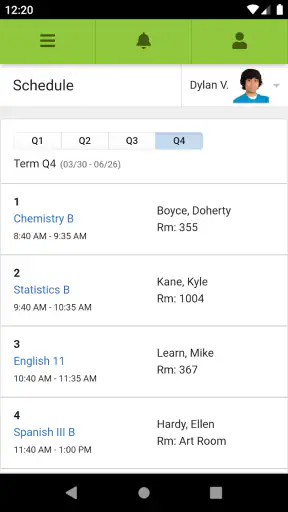
A realistic example would be a parent checking the app before leaving for work. A schedule view can help confirm what the school day looks like, while assignments and grades offer a quick indication of what deserves attention after school. If an announcement has been posted, it may be easier to notice it in the same place than to reconstruct the week from scattered messages. I would still treat the app as a reference point, not as proof that every school update has replaced a teacher’s message.
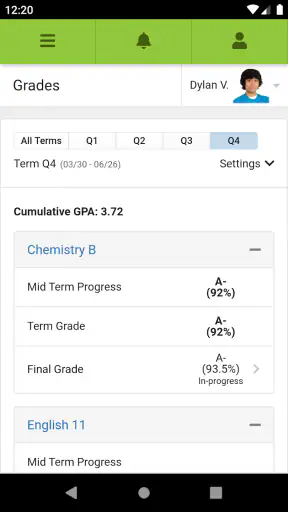
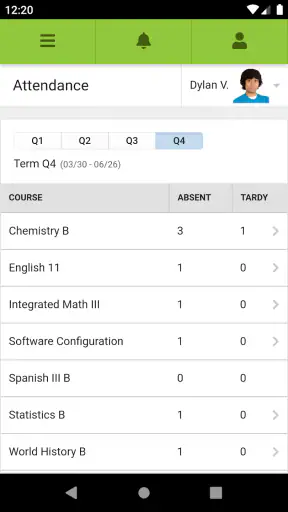
The strongest use case is routine awareness. Campus Parent is useful when you want to answer simple questions quickly: Has a grade appeared? Is there an attendance entry to review? Was a school announcement posted? What does the schedule show? Those are small questions, but answering them from one familiar app is less tiring than switching between multiple systems.
Why the school’s setup matters more than the app alone
Campus Parent cannot create information that a school has not entered or published. That is an important trade-off, and it is easy to overlook when judging the app from its feature list. A parent may open it expecting a complete picture of a child’s academic life, but the quality of that picture depends on how promptly and consistently the school updates Infinite Campus.
For that reason, I would not judge a missing assignment or delayed grade as an immediate app failure. It may reflect the school’s workflow, a teacher’s timing or the difference between an item being visible to staff and being released to families. The app is best understood as a communication and visibility layer. It helps you see what has been made available; it does not guarantee that every classroom activity will appear instantly.
This also explains why the app can feel more useful for some families than others. A school that uses the platform for announcements, attendance, grades and schedules gives parents several reasons to return. A school that uses only one part of it may make the app feel like a narrow portal. Before relying on it, I would ask the school which sections families are expected to use and whether urgent notices are delivered there or through another channel.
Checking information without turning it into surveillance
One of the more practical benefits is the ability to stay informed without constantly asking a child to remember every detail. That can be helpful for younger students or for families building a regular homework routine. At the same time, I think the app works best when it supports a conversation rather than replacing one.
For example, seeing an assignment listed gives me a useful starting point, but it does not explain whether the student understands the material, needs supplies or has already completed the work offline. A grade can signal that a conversation is worth having, yet a single result does not provide the context of classroom participation, revisions or upcoming assessments. The app makes information easier to access; good parenting still requires interpretation.
A useful habit is to check the app at a predictable time instead of refreshing it repeatedly throughout the day. I would review announcements and attendance first, then look at assignments or grades only when there is a practical reason to discuss them. This keeps the tool from becoming a source of unnecessary anxiety, especially when updates arrive at different times.
Trust starts with knowing what the app is—and what it is not
Campus Parent has a fairly clear purpose: it connects families with school-managed information. That clarity helps me trust the app more than a vague education product that tries to cover tutoring, messaging, payments, social interaction and entertainment in one place. Its role is narrower, which makes it easier to decide when I need it and when I should use another channel.
Still, school information is sensitive by nature. Attendance, grades, schedules and assignments can reveal details about a child’s daily life and progress. I would therefore install it only through the official app store, use the correct school account and avoid sharing login details through messages or screenshots. Those are basic precautions, but they matter more here than they would with a casual note-taking app.
The developer is Infinite Campus, Inc., and the app has passed the scale test of being installed over one million times. Its average rating is 3.3 from around 4.8 thousand ratings, with roughly 2.4 thousand written reviews. I read that combination as a sign that the app is useful for a substantial group but not consistently smooth for everyone. In practical terms, I would expect the experience to vary with device, school configuration, account setup and the quality of the data being published.
Account access and the moments that deserve care
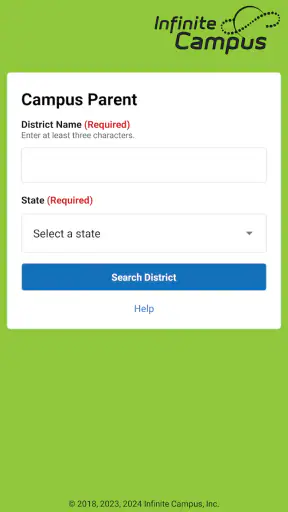
The account stage is where I would slow down. A school portal is not something I would set up casually with a random email address or a password reused from a shopping account. I would follow the school’s enrollment instructions, confirm that the account is connected to the correct student and check that the displayed information matches what the school has told me.
That verification step is especially important in families with more than one child. A parent may need to move between student records, and a quick glance can make it easy to assume that a grade or attendance entry belongs to the wrong child. I would make a habit of checking the selected student before discussing an item or saving a screenshot. This is a simple workflow improvement that prevents an avoidable privacy mistake.
Shared devices require similar care. If a tablet is used by several family members, I would avoid leaving the account open when the device is unattended. I would also be cautious about notifications appearing on a lock screen, particularly if the device is used in a workplace or shared household. The app’s usefulness comes from quick access, but quick access should not mean automatic exposure to everyone nearby.
Another sensitive moment is communicating information from the app. A parent may want to forward a grade, attendance entry or schedule to another caregiver. Before doing so, I would check whether the message includes more information than intended, especially when multiple students or account details are visible. Sharing only the relevant detail is safer than forwarding an entire screen.
How much control does a parent really have?
The main form of control is deciding when to open the app and how to act on what it shows. That may sound limited, but it is useful when handled deliberately. I can use it as a morning check, a weekly review tool or a prompt for a conversation with a child or teacher. I do not have to treat every visible update as an emergency.
I would also separate informational control from school authority. A parent can review a published attendance record, but correcting an error normally belongs to the school’s process rather than the app itself. Likewise, seeing an assignment does not necessarily mean the parent can change its details. This distinction prevents frustration: Campus Parent helps expose the record, while the school remains responsible for maintaining it.
When something looks wrong, my preferred approach would be to capture the relevant details privately, confirm the student and date, and then contact the appropriate school office or teacher. Repeatedly checking the app will not resolve a record that needs correction. The app is most effective when it shortens the path to a well-informed question.
Families should also agree on who is allowed to access the account. In a two-caregiver household, shared awareness can be helpful, but passwords should not be passed around casually. In a separated-family situation or any arrangement involving multiple caregivers, account access should follow the school’s own authorization rules. The app should not be used to bypass those rules or to distribute information beyond the people entitled to receive it.
Where it beats ordinary alternatives
Compared with relying only on email, Campus Parent offers a more organized place to review school information. Email is good for messages that need a written trail, but it can become difficult to search when announcements, teacher notes and automated notices arrive together. A dedicated school portal gives the parent a clearer mental map: attendance is checked as attendance, grades as grades and schedules as schedules.
Compared with a paper planner, the app has the advantage of reflecting updates made by the school rather than depending entirely on a student copying information correctly. That can reduce gaps, especially when a schedule changes or a grade is posted after the school day. The trade-off is that a planner remains useful for personal notes, study plans and tasks that never enter the school system.
Compared with a general homework organizer, Campus Parent is better for official visibility and worse for personal planning. A dedicated organizer may offer richer tools for breaking projects into steps, setting custom reminders or combining schoolwork with household tasks. I would use such a tool alongside Campus Parent if my child needs help managing the work itself. I would not expect the school portal to become a complete productivity system.
Direct contact with a teacher remains better when the issue needs explanation or judgment. The app can show a grade or attendance entry, but it cannot replace the context of a conversation. I see its best role as preparing for that conversation with accurate, current information instead of relying on memory.
Who should use it, and who may be better served elsewhere?
I would recommend Campus Parent to parents whose schools actively use Infinite Campus and who want a single place to monitor routine academic information. It is particularly suitable for families managing several school responsibilities, caregivers who cannot attend every school event and parents who want a quick way to notice changes without waiting for a weekly report.
It is also a sensible choice for families with older Android devices because the minimum operating system is Android 7.0. The free price removes a financial barrier, and the Everyone age rating makes it straightforward to consider in a family setting. Those points do not guarantee a perfect experience, but they make the app easy to try when the school supports it.
I would be more cautious about recommending it to someone who expects a complete learning environment. It is not the right first choice if your priority is video lessons, tutoring, collaborative note-taking, detailed task management or a broad family calendar. A school-specific portal can be valuable without covering those needs.
I would also skip making it the only source of urgent information. If the school tells families that emergencies, closures or time-sensitive changes are communicated by phone, email or another service, that instruction should take priority. A responsible routine uses the app for the information it is meant to provide and keeps the school’s official backup channels available.
My practical routine for getting more from the app
My first tip is to establish an ownership check before doing anything else: confirm the student profile, school connection and most recent visible information. This is especially useful after changing phones, adding another child or returning to the app after a long break. It takes little time and prevents decisions based on the wrong record.
My second tip is to separate review from reaction. I would scan announcements and attendance, note anything that genuinely needs follow-up, and then leave grades or assignments for a calmer moment when I can discuss them constructively. This avoids turning a quick information check into a stressful interrogation.
My third tip is to use the app as a question generator. If an assignment appears incomplete, I would ask whether help is needed rather than assuming the work was ignored. If attendance looks unexpected, I would confirm the date and then contact the school if necessary. If a grade changes, I would look for context before drawing a conclusion. These small habits make the app more useful because they turn raw entries into informed decisions.
My fourth tip is to protect the information during ordinary sharing. I would avoid posting screenshots in family group chats, crop out unrelated student details when sharing a necessary item and log out or lock the device when other people use it. These are not complicated security techniques; they are sensible boundaries for a portal containing school records.
A measured verdict for families
After using Campus Parent as a school-information companion, I see it as practical rather than exciting. Its strength is concentration: announcements, assignments, attendance, grades and schedules can be reviewed from one education-focused app when the school has configured the system well. That can remove everyday friction and help parents arrive at conversations with better information.
Its weakness is dependence. The app cannot control how quickly teachers post updates, how completely a school uses the platform or how much context accompanies a record. It also should not be mistaken for a planner, a teacher relationship or a universal emergency channel. Those limits are not reasons to dismiss it; they are reasons to use it with realistic expectations.
With over one million installs, Campus Parent is clearly established enough to be familiar to many families, while its 3.3 average suggests that the experience deserves a little patience and careful setup rather than blind confidence. I would try it when my school recommends it, verify the account and student details, and judge it by whether it makes school communication easier in my own household.
My bottom line: Campus Parent is worth keeping when it reflects an active Infinite Campus school workflow and you want quick, organized visibility into your child’s school life. I would recommend it as a supporting tool, not as the final authority on every academic or attendance question. Used with sensible account boundaries and direct communication when context is needed, Campus Parent can be a genuinely helpful part of a parent’s routine.


